Showing posts with label Angular 2. Show all posts

Angular 2 : Services and Dependency Injection

Let's look some definitions to understand the subject.

A Service is a functionality that can be shared with different Components. Whenever we find some common aspects in our components, we usually separate it out as a Service.

Dependency Injection is a coding pattern in which a class takes the instances of objects it needs which is called dependencies from an external source rather than creating them itself.

In Angular 2, services are Singleton. It internally implements the Service Locator Pattern. This means each service register itself under one container as a single instance. Angular provides a built in Injector which acts as a container to hold the single instances of all registered services. Angular takes care of creation of Service instance and registering it to the Service container.

The @Injectable() decorator

To inject the service into component, Angular 2 provides an Injector decorator : @Injectable().

We broadly have the following steps to create a Service:

1) Create the service class
2) Define the metadata with a decorator
3) Import what we need.


To understand the Service more, let's built a service in Angular 2 for getting the user profile details in the User component. Let's create some classes:

1. IProfile interface

export interface IProfile{
  Name: string;
  Age: number;
}

2. Profile Class

import {Component, Injectable} from '@angular/core'
import {IProfile} from './iprofile'

@Component({
  selector: 'profile',
  template: `
    <div>
      <h2>Name : {{MyProfile.Name}}</h2>
      <h2>Age : {{MyProfile.Age}}</h2>
    </div>
  `
})
export class Profile{
  MyProfile : IProfile;
  constructor(){
  }
}

3. ProfileService class

import {Injectable} from '@angular/core'
import {IProfile} from './iprofile'

@Injectable()
export class ProfileService{
  getProfiles(): IProfile[]{
    return [{
      Name:'Bob',
      Age: 25
    },
    {
      Name:'Alice',
      Age: 23
    }];
  }
}

Registering a Service:

A Service can be registered in any component. However, it should be registered at root level component only. This is because it we register at two different nested level component, then the service will have two entire different instances in both components. However, we can register at any nested level component just in case if we require to use the service in that component or it's child components only.


In above figure,
1. The "Service 1" is registered at app level, so it is available to all the nested components.
2. The "Service 2" is registered at "Parent 1" component, so it is available to Parent 1, Child1, Child2 and Child 3 components.
3. The "Service 3" is registered at "Child 1" component, so it is available to "Child 1" only, as no other component comes under its hierarchy.
4. The "Service 4" is registered at "Parent 2" component, so it is available to Parent 2 and Child 4 only.

Now, if we try to register "Service 1" both in root component and "Parent 1" component, then it's two instances will be created. That is why, we should register the service at an appropriate component level as per it's usage.

Continuing with our example, Import ProfileService and change the @NgModule() decorator of root level component as:

import {ProfileService} from './profile.service';

.
.
.

@NgModule({
  imports: [ BrowserModule ],
  declarations: [ App ],
  providers:[ProfileService],
  bootstrap: [ App ]
})


Injecting a Service in component:

We can inject our service as a parameter to our constructor class.

constructor(private _profileService: ProfileService){
   
}

Now, we can execute the methods of our service to get the data. We can call the service method inside our constructor, but what if the service wants to pull to data from backend. We don't want the construction of our class halted till the time we pull the data.
A better solution would be to implement the OnInit interface hook provided by Angular 2 and call the service method inside ngOnInit() function. (Know more about Angular hooks here.)

Modify the Profile class as below:

import {Component, Injectable} from '@angular/core'

import {ProfileService} from './profile.service';
import {IProfile} from './iprofile'


@Component({
  selector: 'profile',
  template: `
    <div>
      <h2>Name : {{MyProfile.Name}}</h2>
      <h4>Age : {{MyProfile.Age}}</h4>
    </div>
  `,
})
export class Profile implements OnInit{
  ProfileList : IProfile[];
  MyProfile : IProfile;
  constructor(private _profileService: ProfileService){
   
  }
  
  ngOnInit(){
    this.ProfileList = this._profileService.getProfiles();
    this.MyProfile = this.ProfileList[0];
  }
}

To summarize:

* Create a Service class
* Use @Injectable() decorator to the service.
* Register the service at the root component.
* Inject the service as a constructor parameter of the dependent class.

Live Code:

Plunker here: https://embed.plnkr.co/SbgOOoUtJIeaQBY2FizW?show=app,preview

Angular 2 : Working with Nested Components

What are Nested/Child components?

A Component in Angular 2 can have child components. Also, those child components can have their own further child components. Angular 2 seamlessly supports nested components.

As an example, consider a calculator as a top level component. It is built with several other child components like screen component, button component, body component, battery component etc. These screen, button, body and battery components are nested components of Calculator component.

The nested component have all the functionalities just as any other Angular 2 component.

Now several question arises in our mind:


  1. How we are going to use our nested components in its parent component?
  2. How we can pass data from parent component into its child component?
  3. How can we get the data back from child component to parent component?
  4. How does the child component can respond to the parent events?
  5. How does the parent component can respond to the child events?

To answer all these questions, lets us built a step-by-step example where we have a profile page of a person. It will also have a friend's list.

1) Building Parent and Child components.

Let's first built our Child component in our example app which is Friend list component.

import { Component } from '@angular/core';
 
@Component({
    selector: 'my-friends',
    template: `<div>
                <table>
                  <tr *ngFor='let friend of friends'>
                    <td>{{friend}}</td>
                    <td>
                       <img 
                          src="http://witspry.in/ContentServer/Images/User/user.png" 
                          width="20" />
                    </td>
                  </tr>
                </table>
              </div>`
})
export class MyFriendsComponent{
    friends: Array<string> = [
      'Friend 1',
      'Friend 2',
      'Friend 3',
      'Friend 4',
      'Friend 5',
    ];
}

Now, let's built our Parent component which is User's profile page.

import { Component } from '@angular/core';

import {MyFriendsComponent} from './myFriends';

@Component({
    selector: 'my-profile',
    template:`<img [src]="imgURL" width="50"/>
              <h3>My Friends</h3>
              <my-friends></my-friends>`
})
export class MyProfileComponent{
  constructor(){
    this.imgURL = 'http://witspry.in/ContentServer/Images/User/user_circle.png';  
  }
}

* See the above example as how the <my-friends> is used as a directive to the Profile component.

Now, in main app import both component and add them in the "declarations" array.

@NgModule({
  imports: [ BrowserModule ],
  declarations: [ App, MyProfileComponent, MyFriendsComponent ],
  bootstrap: [ App ]
})
export class AppModule {}


Next, we are going to see how parent component provides input to child component and how child component emit events to send the payloads to parent component. Here is a diagram to get a gist of it.


2) Passing data using @Input() decorator.

@Input() decorator to the rescue

Add a variable name as a following line with @Input() decorator.

export class MyFriendComponent{
  @Input() name : string;   
}

Change our User's profile page as:

@Component({
    selector: 'my-profile',
    template:`
              <img [src]="imgURL" width="50"/>
              <h3>My Friends</h3>
              <div *ngFor="let friend of friends">
                <my-friend [name]='friend'></my-friend>
              </div>
    `
})
export class MyProfileComponent{
  constructor(){
    this.imgURL = 'http://witspry.in/ContentServer/Images/User/user_circle.png';  
    this.friends = [
      'Friend 1',
      'Friend 2',
      'Friend 3',
      'Friend 4',
      'Friend 5'
    ];
  }
}

See the line - <my-friend [name]='friend'></my-friend>
Here we are passing a friend name to the "name" property of the child component.

3) Raising an event using @Output() decorator

The @Output directive enables a child component to use its properties in the parent component.

Lets modify our MyFriend component as:


import { Component, Input, Output, EventEmitter } from '@angular/core';
 
@Component({
    selector: 'my-friend',
    template: `<div>
                <table>
                  <tr>
                    <td>{{name}}</td>
                    <td>
                        <img src="http://putiw.xyz/clashroyaleunlimitedgems/img/user.png"
                            width="20" />
                    </td>
                    <td><button (click)='OnClick()'>Ping</button></td>
                    <td> {{timesPinged}} </td>
                  </tr>
                </table>
              </div>`
})
export class MyFriendComponent{
  @Input() name : string;
  timesPinged: number = 0;
  @Output() pingClicked: EventEmitter<string> = new EventEmitter<string>();
  
  OnClick(){
    this.timesPinged++;
    this.pingClicked.emit('You pinged ' + this.name + ' ' + 
          this.timesPinged + (this.timesPinged == 1? ' time' : ' times'));
  }
}

Here, we have imported Output and EventEmitter from Angular core library. Also, we have defined an event using @Output() decorator. The OnClick is a local function which is invoked from button's click event. Since the "pingClicked" is decorated with @Output(), it's emit function is able to notify the parent component.

Now, change the parent component to capture the raised event from it's child component as below:

import { Component } from '@angular/core';

@Component({
    selector: 'my-profile',
    template: `
              <img [src]="imgURL" width="50"/>
              <br />
              {{pingMessage}}
              <br />
              Total Pings today : {{totalPings}}
              <h3>My Friends</h3>
              <div *ngFor="let friend of friends">
                <my-friend [name]='friend'
                          (pingClicked)='onFriendPingClicked($event)'>
                </my-friend>
              </div>
    `
})
export class MyProfileComponent{
  constructor(){
    this.imgURL = 
 'http://witspry.in/ContentServer/Images/User/user_circle.png';  
    this.friends = [
      'Friend A',
      'Friend B',
      'Friend C',
      'Friend D',
      'Friend E'
    ];
    this.totalPings = 0;
    this.pingMessage = '';
  }
  
  onFriendPingClicked(pingMessage: string): void{
    this.totalPings++;
    this.pingMessage = pingMessage;
  }
}

Finally, we have added an Event binding (please check our previous article in Angular 2 : Event bindings) which is "pingClicked". Have you remember, this was decorated with @Output in our child component. Yes, this is how was are able to use it here. Also, it is assigned to a function "onFriendPingClicked($event)". The $event contains the data that the child component emits on the occurrence of it's event.

To Summarize:

* Use @Input() decorator to pass data to child component.
* Use @Output() decorator to raise an event to parent component. Note : The @Output() decorator property can be only of EventEmitter type.

Live Code

Angular 2 : Pipes

In simple words, In Angular 2, a pipe takes in data as input and transforms it to a desired output. It is corresponding to what filters are in Angular 1.

A quick example :

<p>{{date | date:'shortDate'}}</p> <p>{{date | date:'longDate'}}</p>

It transforms a date string to short date and long date format.

There are three type of Pipes Angular 2 provides:

1) Builtin Pipes:


There are several inbuilt pipes provided by Angular 2 framework. Following is the list of some of the Builtin Pipes:

a) DatePipe:

date_expression | date[:format]

where expression is a date object or a number and format indicates which date/time components to include. The format can be predifined as shown below or custom as shown in the table.

Format Description
medium equivalent to 'yMMMdjms' (e.g. Sep 3, 2010, 12:05:08 PM for en-US)
short equivalent to 'yMdjm' (e.g. 9/3/2010, 12:05 PM for en-US)
fullDate equivalent to 'yMMMMEEEEd' (e.g. Friday, September 3, 2010 for en-US)
longDate equivalent to 'yMMMMd' (e.g. September 3, 2010 for en-US)
mediumDate equivalent to 'yMMMd' (e.g. Sep 3, 2010 for en-US)
shortDate equivalent to 'yMd' (e.g. 9/3/2010 for en-US)
mediumTime equivalent to 'jms' (e.g. 12:05:08 PM for en-US)
shortTime equivalent to 'jm' (e.g. 12:05 PM for en-US)

Example :
{{ dateObj | date }} // output is 'Jan 10, 2016'

{{ dateObj | date:'medium' }} // output is 'Jan 10, 2016, 2:10:15 PM'

{{ dateObj | date:'shortTime' }} // output is '2:10 PM'

{{ dateObj | date:'mmss' }} // output is '10:15'


b) UpperCasePipe,

expression | uppercase

It converts value into an uppercase string using String.prototype.toUpperCase().

Example:
<p>In uppercase: <pre>'{{value | uppercase}}'</pre>

c) LowerCasePipe:

expression | lowercase

It converts value into a lowercase string using String.prototype.toLowerCase().

Example:
<p>In lowercase: <pre>'{{value | lowercase}}'</pre>

d) CurrencyPipe:

number_expression | currency[:currencyCode[:symbolDisplay[:digitInfo]]]

where
currencyCode - the ISO 4217 currency code, such as USD for the US dollar and EUR for the euro.

symbolDisplay - a boolean indicating whether to use the currency symbol or code.
true - use symbol (e.g. $).
false(default): use code (e.g. USD).

digitInfo -
digitInfo is a string which has a following format:
{minIntegerDigits}.{minFractionDigits}-{maxFractionDigits}

e) PercentPipe:

number_expression | percent[:digitInfo]
where digitInfo is same as mentioned above.

Note : Pipes can be chained as:{{ birthday | date | uppercase}}

2. Async Pipes:

observable_or_promise_expression | async

An async pipe subscribes to an Observable or Promise and returns the latest value it has emitted. When a new value is emitted, the async pipe marks the component to be checked for changes.

3. Custom Pipes:

We can create very own custom pipes by using the @Pipe decorator and implementing the PipeTransform interface:

Example:

import { Pipe, PipeTransform } from 'angular2/core'; 

@Pipe({ name: 'HtoS' }) 
export class HoursToSeconds implements PipeTransform { 
  transform(value: string, args: any[]){
  return parseFloat(value)*3600; 
  } 
}


Live Code:

Angular 2 : Data Bindings

Angular provides many kinds of data binding

We can group all bindings into three categories by the direction in which data flows. Each category has its distinctive syntax:

Interpolation

Any property in Component class can be shown as text through Interpolation written as {{}}

Property Binding

It is similar to Interpolation but it is a preferable way of doing one way binding, especially in case of styles and attribute bindings. It has a syntax []

Event Binding

It binds and event to a Component function. The events are standard browser events such as Click, DoubleClick etc.

Two-way binding

It binds a Component property to an input element. The changes gets reflected in the property at the same time. This is actually a combination of One-way binding and Event-binding. It is written as Banana-in-a-box syntax [(..)]. The outer braces shows One-way binding and the inner brace shows Event binding.


To Visualize

DOM


Interpolation : {{someText}}
Property Binding :
<img [src]='prop.URL'>
Event Binding :
<button (click)='showImage()'>
Two way Binding :
<input [(ngModel)]='Name'>

Component


Example

<input type="text" [value]="myName">
<button (click)="colorChange(textColor)" [style.color]="textColor">Change My Color</button>
<input type="text" [(ngModel)]="textColor">

<table border=2>
    <!--  expression calculates colspan=2 -->
    <tr>
        <td [attr.colspan]="1 + 1 + 1">Left - Center - Right</td>
    </tr>
    <tr>
        <td>1</td>
        <td>2</td>
        <td>3</td>
    </tr>
</table>

Live Code 

Plunker here: https://embed.plnkr.co/plunk/BT8gj5?show=app,preview

Running Angular 2 app in Android Emulator with NativeScript

This post is about running an Angular 2 app in Android emulator.

We have seen that the documentation provided on internet is not the way it should be. This is because it includes four entirely different setups (Node, Android SDK, NativeScript and GIT). Issues occurs and we end up in wasting much time in internet search to fix those issue. We know the issues well and hence have tried to document this process from scratch where you have just....
>>>> Windows 10 installed on your machine.  .... And Nothing Else

Please follow the mentioned steps in sequence (remember the only pre-requisite being Windows 10).

1) Install Node js version 6.7.0 or later. 


You can download the same from -
https://nodejs.org/en/download/current


2) NodeJS version check.


Post node.js installation, open "Node.js command prompt" from Start menu. Check the node and npm versions. Make sure you have these or later versions.

For npm version : npm -v
For node version : node -v


3) Nativescript library for Nodejs installation.


Run the following command to install native script package from Node.js command prompt

npm install -g nativescript


4) Nativescript nodejs libriary installation verification.


To verify the telerik nativescript installation, type "tns" and hit enter in the command prompt.


5) Android SDK installation:


Go to the website - https://developer.android.com/studio/index.html

Scroll to the bottom.

We don't need to install the entire Android Studio, just click on the highlighted link to download the Android Software Development Kit. Install the SDK after download.


Now, you should be seeing two applications installed in "All Programs" menu from Start button.


6) Android packages installation.


Right click SDK Manager and "Run as administrator".

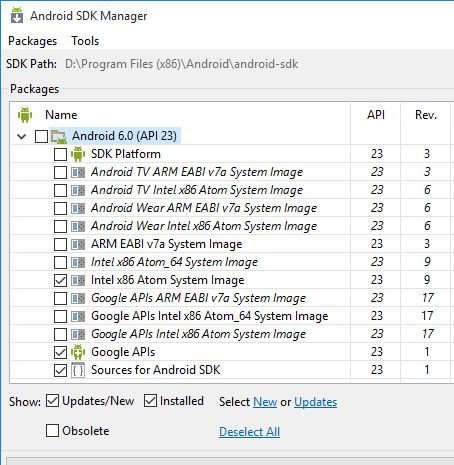
Check three options under "Android 6.0 (API 23) and click "Install packages".


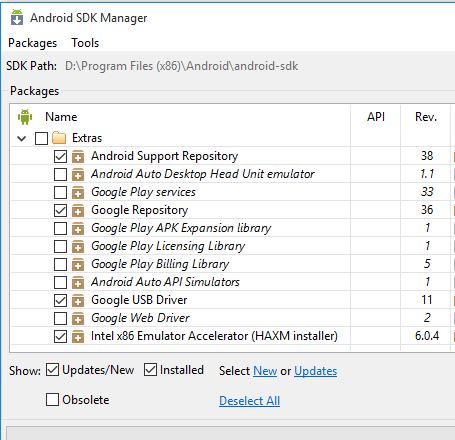
Also, Check four options under "Extras".


7) Android Virtual Device configuration.


Right click on AVD (Android Virtual Device) manager from "Start Menu" and click "run as administrator".

In AVD Manager home screen, click "Create" and enter the exact following information. Click OK.


After this, you should be seeing this screen.


8) Andriod HAXM installation.


Go to the folder - "C:\Program Files (x86)\Android\android-sdk\extras\intel\Hardware_Accelerated_Execution_Manager"

Double click - "intelhaxm-android.exe" to execute the wizard and finish the set up.


9) Andriod Emulator preview.


Now in AVD Manager, click on "Start" on the right side options. The following screen should appear.


10) Nativescript for Windows installation.


Open Command prompt from "Start" menu as an administrator and paste the following command and hit enter to execute.

@powershell -NoProfile -ExecutionPolicy Bypass -Command "iex ((new-object net.webclient).DownloadString('https://www.nativescript.org/setup/win'))" 

Verify the set up by executing the below command.

tns doctor

If you see "No issues were detected" you are good to go!


11) GIT installation.


Go to the URL - https://git-scm.com/downloads

and click "Windows" under "Downloads" section. After download install the setup.


12) Nativescript's Angular 2 sample app setup.


Create a folder in any location in your drive. (say test)

Now, from start menu - Open "Git Bash" as an administrator.

In Git bash, go to the location where you have created the "test" folder. Paste the following to Git clone a sample nativescript app.

git clone https://github.com/NativeScript/sample-Groceries.git
In Git bash, go to the repo folder

cd sample-Groceries

In Git bash, check out the version

git checkout angular-start


11) Sample app execution in Andriod simulator.


Open command prompt as an administrator and go to the "sample-Groceries" folder created in previous step. Paste the below command and hit enter to execute.

tns platform add android

now run the following command :

tns run android --emulator

You should be seeing the "Hello World" app hosted in the Android emulator.


12) Congratulation! 


You have successfully created and Angular 2 app in Android with NativeScript.


Note : Please post comments, in case you find any issues. Thanks!